Any Device with a Browser
Every MoBro dashboard is a web page served by MoBro on your PC.
This means nearly any device with a web browser can act as an external dashboard: an old phone or tablet, a smart TV,
a laptop or a second PC. No app and no additional software is required.
What You Need
- MoBro running on your PC.
- The device is connected to the same local network as your PC.
- An up-to-date web browser on the device.
Open a Dashboard
-
Find the IP address of your PC:
- Press
Win + R, typecmdand press Enter. - Run
ipconfig. - Use the IPv4 Address of the network adapter you are connected with (usually something like
192.168.1.42).
- Press
-
On the device, open the browser and enter the following URL:
http://[PC_IP_ADDRESS]:42169?uuid=[UNIQUE_ID]&name=[DISPLAY_NAME][PC_IP_ADDRESS]: The IP address of your PC.[UNIQUE_ID]: Any ID that is unique to this device, e.g.livingroom-tv.[DISPLAY_NAME]: The name shown for this device in MoBro, e.g.LivingRoomTV.
Example:
http://192.168.1.42:42169?uuid=livingroom-tv&name=LivingRoomTV -
The device now shows up in the Dashboards section of MoBro. Select it and choose a layout to display, just like for any other external dashboard.
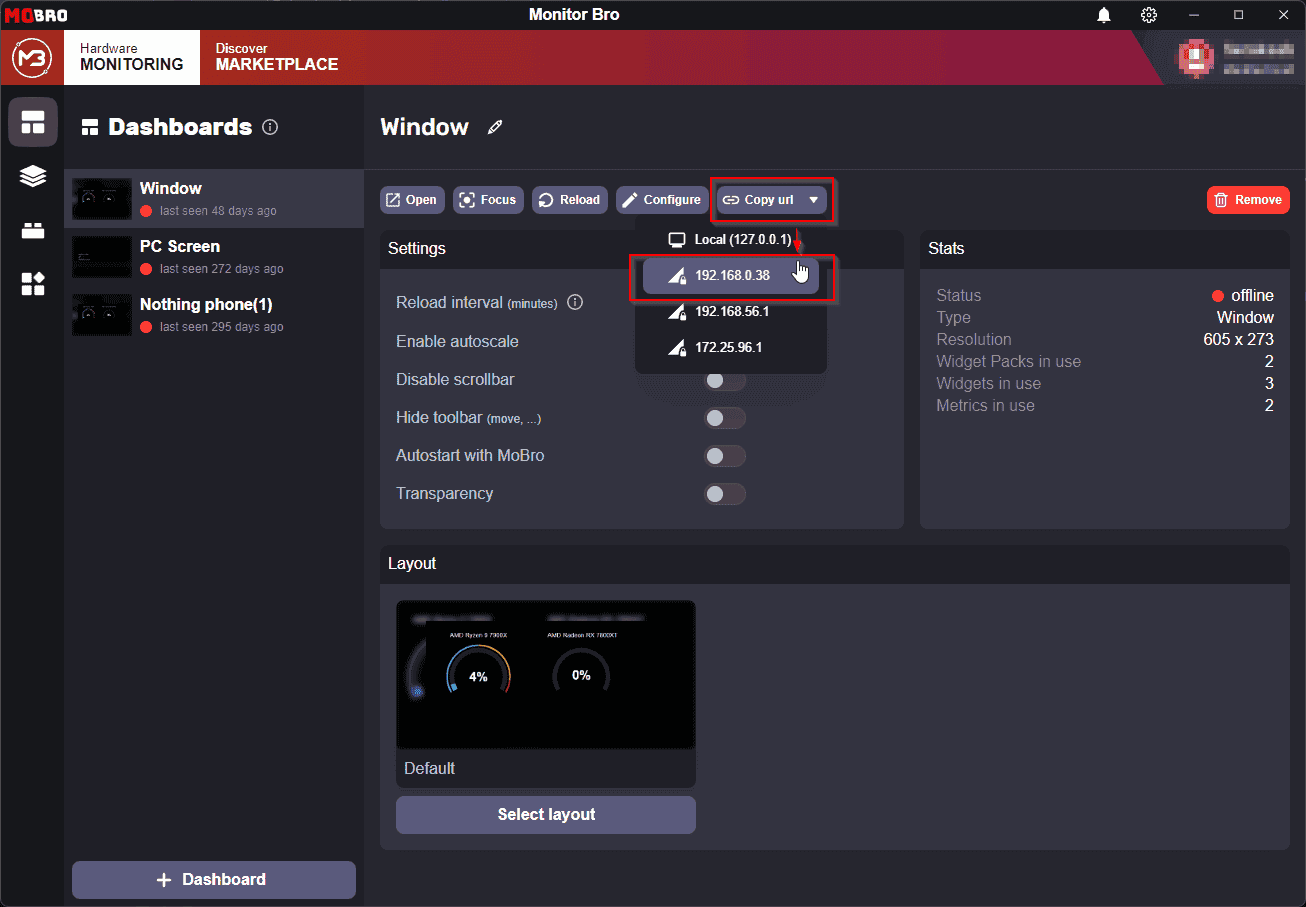
Instead of building the URL yourself, you can select an existing dashboard in MoBro and copy its URL from the details
page. Opening that URL shows the same dashboard in the browser.
42169 is the default port of the MoBro Dashboard Server. You can check the port in use under
Settings → Network.
Multiple Devices
Every device (and every browser window) needs its own unique uuid.
MoBro uses it to recognize the device and remember which layout it displays. If two devices use the same uuid, MoBro
treats them as the same dashboard.
The number of dashboards that can be active at the same time depends on your tier. See Tiers & Limits.
Device Tips
iPhone & iPad
- Open the URL in Safari, tap the share button and select Add to Home Screen to open the dashboard like an app without the browser bar.
- Disable Auto-Lock (Settings → Display & Brightness) so the screen stays on.
- Use Guided Access (Settings → Accessibility) to lock the device to the dashboard.
Android Phones & Tablets
- Open the URL in Chrome, open the menu and select Add to Home screen for a full-screen shortcut.
- Increase the screen timeout or enable Stay awake in the developer options while charging.
- Alternatively, you can use the ModBros Android app, but it is not required.
Smart TVs
Most smart TVs come with a built-in browser. Open the URL there, and check the TV's energy settings so it does not turn off after a period of inactivity.
Second PC or Laptop
Any browser works. To show the dashboard full-screen without any browser controls, start Chrome or Edge in kiosk mode:
chrome --kiosk "http://192.168.1.42:42169?uuid=office-laptop&name=OfficeLaptop"
Raspberry Pi
A Raspberry Pi can also use the browser method. For a dedicated setup, we recommend our pre-configured image instead.
The Dashboard Does Not Load?
- Make sure you entered the URL including
http://at the beginning. Otherwise, most browsers treat it as a search. - Check that MoBro is running and both devices are on the same network.
- See External device can't connect for further steps, e.g. allowing MoBro through the Windows Firewall.